Thursday, 7 March 2013

How do hubs, switches, routers, and access points differ

0 comments

How do hubs, switches, routers, and access points differ


Hubs, switches, routers, and access points are all used to connect computers together on a network, but each of them has different capabilities.

Hubs

Hubs enable computers on a network to communicate. Each computer plugs into the hub with an Ethernet cable, and information sent from one computer to another passes through the hub. A hub can't identify the source or intended destination of the information it receives, so it sends the information to all of the computers connected to it, including the one that sent it. A hub can send or receive information, but it can't do both at the same time. This makes hubs slower than switches. Hubs are the least complex and the least expensive of these devices.

Switches

Switches work the same way as hubs, but they can identify the intended destination of the information that they receive, so they send that information to only the computers that are supposed to receive it. Switches can send and receive information at the same time, so they can send information faster than hubs can. If your home network has four or more computers or you want to use your network for activities that require passing a lot of information between computers (such as playing network games or sharing music), you should probably use a switch instead of a hub. Switches cost a little more than hubs.

Routers

Routers enable computers to communicate and they can pass information between two networks—such as between your home network and the Internet. This capability to direct network traffic is what gives the router its name. Routers can be wired (using Ethernet cables) or wireless. If you just want to connect your computers, hubs and switches work well; however, if you want to give all of your computers access to the Internet using one modem, use a router or a modem with a built-in router. Routers also typically provide built-in security, such as a firewall. Routers are more expensive than hubs and switches.


Access points

Access points (also called base stations) provide wireless access to a wired Ethernet network. An access point plugs into a hub, switch, or wired router and sends out wireless signals. This enables computers and devices to connect to a wired network wirelessly. Access points act a lot like cellular phone towers: you can move from one location to another and continue to have wireless access to a network. When you connect to the Internet wirelessly using a public wireless network in an airport, coffee shop, or hotel, you are usually connecting through an access point. If you want to connect your computers wirelessly and you have a router that provides wireless capability, you don't need an access point. Access points don't have built-in technology for sharing Internet connections. To share an Internet connection, you must plug an access point into a router or a modem with a built-in router.


Continue Reading »

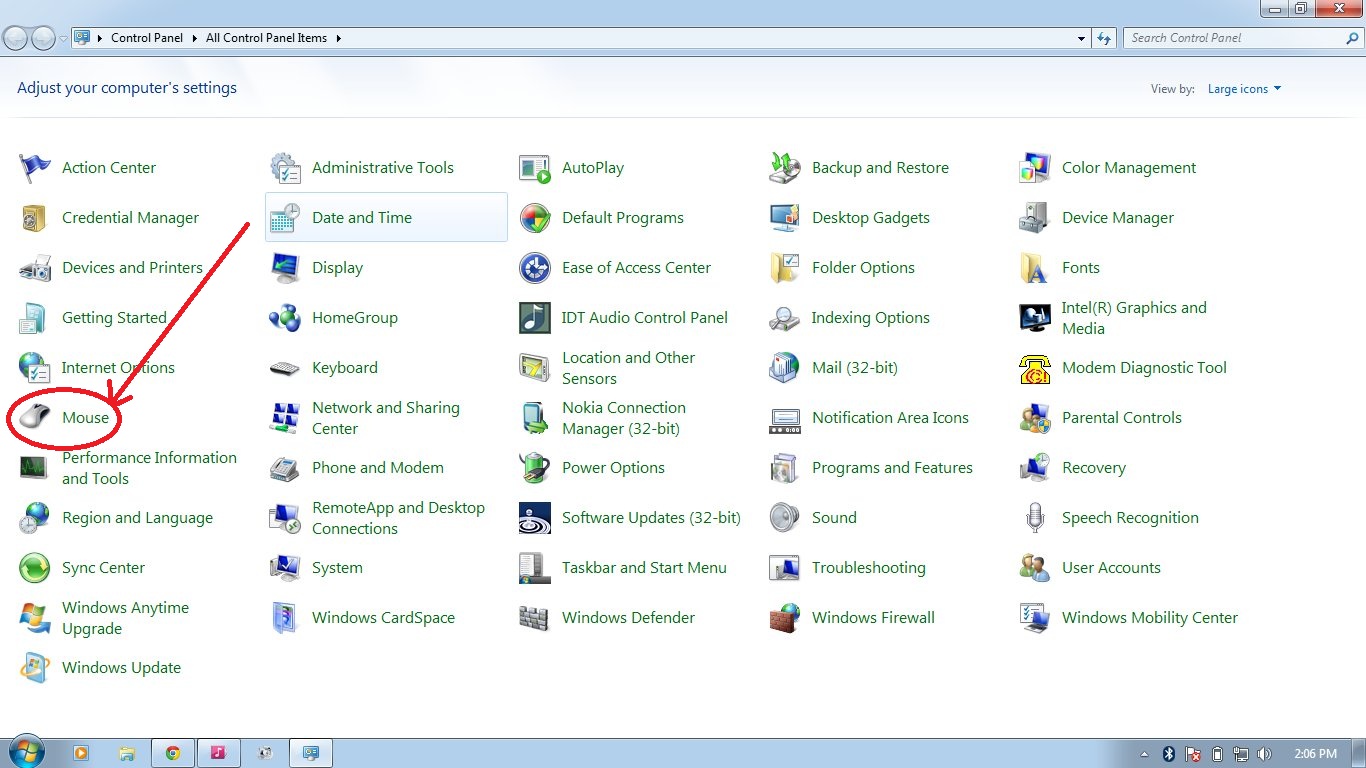
how to change mouse pointers in windows 7

0 comments

step 1 - go to desktop and click on start button


Step 2 - click on control panel then new window opened and then click on mouse


step 3 - then you will see a mini window. click on pointer


step 4 - click on browse button


step - 5 select any pointer from your mouse pointers folder


last click on apply button


Continue Reading »

Wednesday, 6 March 2013

how to Connect your computer to a TV

0 comments


Connect your computer to a TV
To connect your computer to a TV, your computer needs to have an output port that matches one of the input ports on your TV.


What you'll need if you have an HDTV

Because almost every computer has an output port, you can use a cable to connect your computer to your high-definition television (HDTV). Most computers have a VGA output port (so using VGA cables is very common). Others have Digital Visual Interface (DVI), high-definition multimedia interface (HDMI), or component video output ports, which all require different kinds of cables.
The following scenarios show you how you can connect a computer to an HDTV:
If your computer has this type of output port
It should work with this type of TV input port
Using this type of cable
If your computer has this type of output port
It should work with this type of TV input port
Using this type of cable
HDMI
HDMI
HDMI to HDMI
DVI
DVI or HDMI
DVI to DVI or DVI to HDMI
VGA
VGA
VGA to VGA

What you'll need if you have a standard-definition TV

Most standard-definition TVs support only composite video or S-Video connections. If your computer supports one of these, you might be able to connect it to your TV. However, both of these connection types will result in displays that are not as sharp as the results you get with an HDTV or with a standard computer monitor.
The following scenarios show you how you can connect a computer to a standard-definition TV:
If your computer has this type of output port
It should work with this type of TV input port
Using this type of cable
Composite video
Composite video
Composite video to composite video
S-Video
S-Video
S-Video to S-Video

Connect your computer to your TV

After you have the right cable, follow these steps to connect your computer to your TV:
1.      Turn off your computer and position it within easy reach of your TV. Disconnect the monitor, but leave the mouse and keyboard connected.
2.      Connect the appropriate video cable from your computer's output to your TV.
3.      Turn on your TV and set it to the input that matches the output on your computer. You might need to refer to the user's guide included with your TV for instructions on how to do this.
4.      Turn on your computer.
You should see Windows displayed on your TV. If the screen looks stretched, or part of the screen seems cut off, you probably need to adjust the screen resolution in Windows. For more information, see Getting the best display on your monitor.
If you can't see Windows on your TV, you might need to reconnect the computer to your monitor and adjust the screen resolution before you connect to your TV.

Notes

         Cables for VGA, DVI, and component video don't support audio signals. However, HDMI cables do support audio signals, but not all HDMI-enabled video cards support audio. If your HDTV has an audio input, you might be able to connect a separate audio cable from your computer sound card directly to the TV. Otherwise, you'll need to connect the audio signal to a different device, such as external computer speakers or your home stereo system. For more information about sound cards, see Sound cards: frequently asked questions.
         If your computer doesn't support the type of video connection you need, then you might be able to install a new video card that has the right connection.


posted by vinay sabharwal 

Continue Reading »

how to Uninstall or change a program in windows 7

0 comments


Uninstall or change a program in windows 7
You can uninstall a program from your computer if you no longer use it or if you want to free up space on your hard disk. You can use Programs and Features to uninstall programs or to change a program's configuration by adding or removing certain options. For more information about uninstalling programs, see Uninstalling programs: frequently asked questions. To learn more about installing programs on your computer, see Install a program.
Step1- go to your desktop


Step 2 – click on start button 


Step 3 – go to control panel


Step 4 – click on program and features


  1. Select a program, and then click Uninstall. Some programs include the option to change or repair the program in addition to uninstalling it, but many simply offer the option to uninstall. To change a program, click Change or Repair. If you are prompted for an administrator password or confirmation, type the password or provide confirmation 

if this is helpful for you please comment and share 

posted by vinay sabharwal


Continue Reading »

like us on facebook

 
© 2013 techshelve . Designed by Making Different , provided by All Tech Buzz, Powered by Blogger